cshttp Beginner Tutorial - Day 0: Getting Started with cshttp
Day 0: Getting Started with cshttp
Welcome! In this tutorial series, you will learn how to build real, interactive web applications using C#.
We will use cshttp — a high-performance, self-sustained, standalone micro web framework for C#. It lets you run web servers and create web apps with almost zero boilerplate or configuration.
- Official GitHub Repository: https://github.com/adriancs2/cshttp
- Releases & Downloads: https://github.com/adriancs2/cshttp/releases
1. Prerequisites (Choose Your Development Environment)
Before starting, choose ONE of the following two development setups:
Environment 1: Visual Studio 2022 (Community Edition - Recommended for Beginners)
Visual Studio provides a complete, all-in-one graphical development environment.
- Download: https://visualstudio.microsoft.com/vs/community/
- During Installation:
- In the installer workloads screen, check ".NET desktop development" or "ASP.NET and web development".
- In the Individual components tab, make sure .NET Framework 4.8 development tools and the latest .NET SDK (e.g., .NET 8 or newer) are selected.
Environment 2: Visual Studio Code + .NET SDK (Lightweight & Cross-Platform)
If you prefer a lightweight code editor:
- Install .NET SDK:
- Download & install the .NET SDK (.NET 8 or newer): https://dotnet.microsoft.com/download
- Install VS Code:
- Download: https://code.visualstudio.com/
- Install Extension:
- Open VS Code, go to the Extensions tab (
Ctrl + Shift + X), search for and install the official "C# Dev Kit" extension.
- Open VS Code, go to the Extensions tab (
2. Getting cshttp into Your Project (3 Methods)
There are three ways to get cshttp into your project, depending on your preference:
Method 1: Download the Starter Pack (Easiest & Recommended)
Download the pre-configured cshttp-starter-pack.zip from the GitHub Releases page.
The Starter Pack is pre-configured to support both modern .NET (8.0, 9.0, 10.0+) and classic .NET Framework 4.8 automatically.
When you unzip the folder, you will see:
starter-pack/
├── lib/
│   ├── net8.0/               <-- Pre-compiled DLLs for modern .NET
│   │   ├── cshttp.dll
│   │   ├── cshttp.web.dll
│   │   └── cshttp.server.dll
│   └── net48/                <-- Pre-compiled DLLs for .NET Framework 4.8
│       ├── cshttp.dll
│       ├── cshttp.web.dll
│       └── cshttp.server.dll
├── StarterApp.csproj         <-- Pre-configured project (auto-detects runtime)
├── Program.cs                <-- Your application code
└── README.md
Everything is pre-wired. Open the folder, press run, and it works immediately.
Method 2: Manually Include the Pre-Compiled DLLs
If you already have an existing C# project:
- Grab the compiled DLLs:
- Download them directly from GitHub Releases.
- OR Compile from source: Clone the repo from https://github.com/adriancs2/cshttp and build the solution in
Releasemode.
- Copy the 3 DLLs (
cshttp.dll,cshttp.web.dll,cshttp.server.dll) into alibfolder inside your project. - In your
.csprojfile, add references to them:<ItemGroup> <Reference Include="cshttp"><HintPath>lib\cshttp.dll</HintPath></Reference> <Reference Include="cshttp.web"><HintPath>lib\cshttp.web.dll</HintPath></Reference> <Reference Include="cshttp.server"><HintPath>lib\cshttp.server.dll</HintPath></Reference> </ItemGroup>
Method 3: Directly Include All Source Code
If you want complete control and want to step through cshttp's source code line by line while debugging:
- Clone or download the repository: https://github.com/adriancs2/cshttp.
- Either add the 3 source projects (
cshttp,cshttp.web,cshttp.server) to your Solution and add project references, or copy the source files directly into your project.
3. Your Very First Web Server
Open Program.cs in your editor. It contains the starter web application:
using cshttp;

static class Program
{
    static void Main()
    {
        WebApp.Run(8080, OnRequest);
    }

    static void OnRequest()
    {
        string path = Request.Path.ToLower();
        string html = "";

        switch (path)
        {
            case "/":
            case "/home":
                html = @"
    <html>
        <head>
            <title>Hello World</title>
        </head>
        <body>
            <h1>Welcome cshttp!</h1>
            <p>Hello World!</p>
        </body>
    </html>
    ";
                break;
            default:
                Response.StatusCode = 404;
                html = @"
    <html>
        <head>
            <title>Not Found</title>
        </head>
        <body>
            <h1>404 Not Found</h1>
            <p>The page that you are looking for does not exist.</p>
        </body>
    </html>
                ";
                break;
        }

        Response.Write(html);
    }
}
4. How to Run It
- Open a terminal in your project folder (or use your IDE's built-in terminal).
- Run the command:
dotnet run(Or simply press the Start / Play button in Visual Studio / VS Code).
- Open your browser and visit:
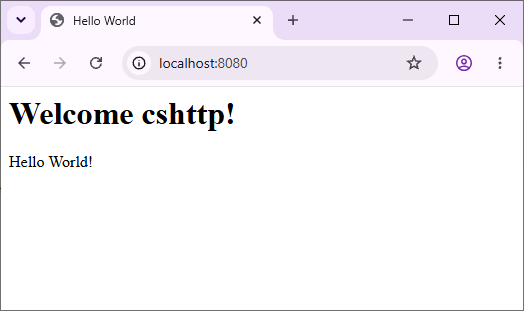
http://localhost:8080/You will see: "Welcome cshttp! Hello World!"
- Try visiting
http://localhost:8080/xyzto verify the 404 handler!
To stop the server at any time, press Ctrl + C in your terminal or click the stop debugging button in your editor.
5. How Does It Work?
WebApp.Run(8080, OnRequest);- Starts the server listening on port
8080. - Directs every incoming browser request to the
OnRequesthandler.
- Starts the server listening on port
Request.Path&switchstatement:- Inspects the URL path the user navigated to and assigns the appropriate HTML content.
Response.Write(html);:- Sends the response HTML string back to the browser.
In Day 1, we will dive deeper into multi-page routing, page separation, and handling cleaner endpoints.