Part 3: Printing Full Dynamic Layout Content (Reports, Data Grids, etc…)

This is part of the series of introducing Vanilla ASP.NET Web Forms Architecture. Read more about this at the main menu: Main Article: [Introducing Vanilla ASP.NET Web Forms Architecture]
Part 3: Printing Full Dynamic Layout Content (Reports, Data Grids, etc…)
- Part 1: Printing Static Layout Content (Tickets, PVC ID Card, etc…)
- Part 2: Printing Semi Dynamic Layout Content (Invoices, Bills, etc…)
- Part 3: Printing Full Dynamic Layout Content (Reports, Data Grids, etc…)
- Part 4.1: Generate PDF Using Chrome.exe in ASP.NET Web Forms
- Part 4.2: Generate PDF Using Puppeteer Sharp in ASP.NET Web Forms
Introduction
In Part 1, we covered static layouts (tickets, cards) where everything is fixed. In Part 2, we tackled semi-dynamic layouts (invoices) where a fixed header/footer surrounds a variable-length item section — requiring careful height calculations and pagination logic.
Now in Part 3, we’re going full dynamic — and here’s the good news: it’s actually simpler than Part 2!
Why? Because with full dynamic reports:
- No fixed footer to worry about — No totals section that must appear on the last page
- No height calculations — Just count the rows and paginate
- Simple math — 30 rows per page? Divide total rows by 30, done!
The classic examples are:
- Daily/Monthly Sales Reports
- Transaction Lists
- Inventory Reports
- Customer Lists
- Audit Logs
These documents share a common structure:
- Simple Header — Report title, date, page number, summary totals
- Data Table — Rows and rows of data, same structure on every page
- No Footer — Or just a simple page number (already in header)
Visual Design – Full Dynamic Layout (Daily Sales Report)
Example: A daily sales report showing all invoices for the day
Works on: A4/Letter paper printers
Imagine we have a daily sales report that will be printed on A4 paper, which will look something like this:
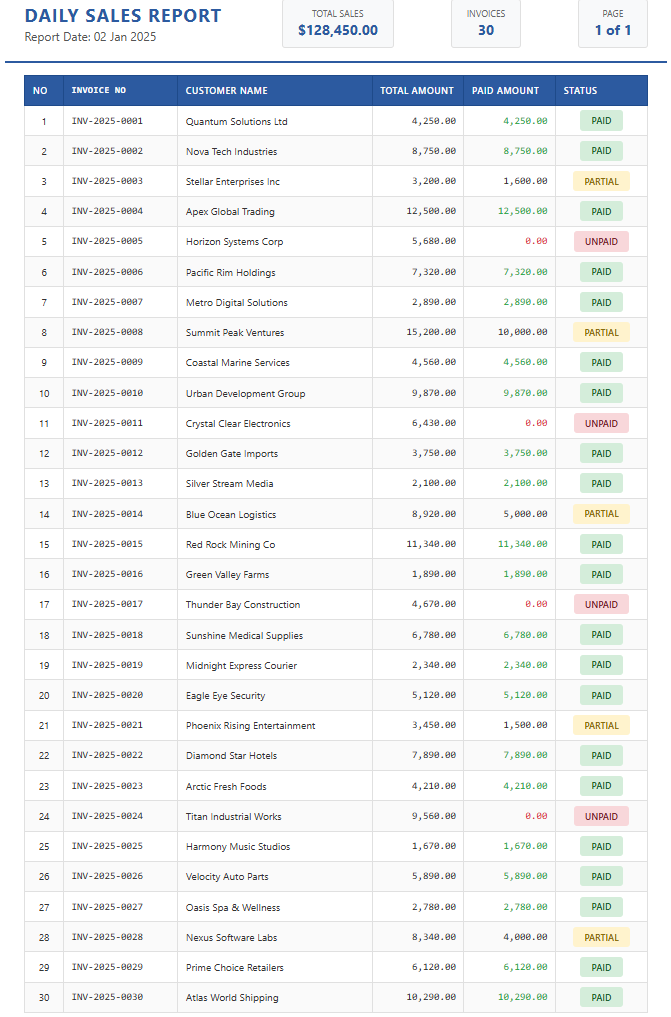
The report consists of:
- Header Section (20mm): Report title, date, summary totals, page number
- Data Table (250mm): Invoice rows with consistent columns across all pages
Understanding the Page Layout
Here’s the simple layout for our report:
- Report title
- Report date
- Summary: Total Sales, Invoice Count
- Page: X of Y
- Table header (8mm)
- Table body (242mm)
- ~30 rows @ ~8mm each
The Simple Pagination Logic
This is where full dynamic shines — the pagination is dead simple:
// Total rows in the report
int totalRows = salesData.Count;

// Rows per page (fixed)
int rowsPerPage = 30;

// Calculate total pages (simple ceiling division)
int totalPages = (int)Math.Ceiling((double)totalRows / rowsPerPage);

// Example: 85 rows ÷ 30 = 2.83 → 3 pages
// Page 1: rows 1-30
// Page 2: rows 31-60
// Page 3: rows 61-85
No height calculations. No footer positioning. Just simple math.
Data Model
Prepare the C# Class object for the sales data:
/// <summary>
/// Represents a single row in the daily sales report
/// </summary>
public class DailySalesRow
{
    public int RowNo { get; set; }           // Sequential row number
    public string InvoiceNo { get; set; }    // Invoice number (e.g., INV-2025-0001)
    public string CustomerName { get; set; } // Customer name
    public decimal TotalAmount { get; set; } // Invoice total amount
    public decimal PaidAmount { get; set; }  // Amount paid so far
    public string PaidStatus { get; set; }   // "Paid", "Partial", "Unpaid"
}

/// <summary>
/// Container for the entire report data
/// </summary>
public class DailySalesReport
{
    public DateTime ReportDate { get; set; }       // The date of the report
    public decimal TotalSales { get; set; }        // Sum of all invoice totals
    public int TotalInvoices { get; set; }         // Count of invoices
    public List<DailySalesRow> Rows { get; set; }  // All the data rows
}
URL API Routing
Preparing the URL API Routing:
// Example of URL API format:

// Query String
// https://myweb.com/apiDailySales?date=2025-01-02&autoprint=1

// MVC alike URL
// https://myweb.com/apiDailySales/2025-01-02/1

// MVC alike URL Routing

using System.Web.Routing;

public class Global : System.Web.HttpApplication
{
    protected void Application_Start(object sender, EventArgs e)
    {
        // Route the main api page
        RouteTable.Routes.MapPageRoute("apiSales1", "apiDailySales", "~/apiDailySales.aspx");

        // Route with date parameter only (auto-print defaults to true)
        RouteTable.Routes.MapPageRoute("apiSales2", "apiDailySales/{date}", "~/apiDailySales.aspx");
        RouteTable.Routes.MapPageRoute("apiSales3", "apiDailySales/{date}/", "~/apiDailySales.aspx");

        // Route with date and auto-print parameters
        RouteTable.Routes.MapPageRoute("apiSales4", "apiDailySales/{date}/{autoprint}", "~/apiDailySales.aspx");
        RouteTable.Routes.MapPageRoute("apiSales5", "apiDailySales/{date}/{autoprint}/", "~/apiDailySales.aspx");
    }
}
Report Generator Engine
The Report Generator Engine — notice how much simpler it is compared to Part 2:
public class engineDailySales
{
    // ============================================
    // Configuration: Rows per page
    // This is the ONLY pagination setting needed!
    // ============================================
    const int ROWS_PER_PAGE = 30;

    /// <summary>
    /// Generate the Daily Sales Report HTML document
    /// </summary>
    /// <param name="reportDate">The date to generate report for</param>
    /// <param name="autoprint">1 = auto print, 0 = preview only</param>
    /// <returns>Complete HTML document as string</returns>
    public static string GenerateReport(DateTime reportDate, int autoprint)
    {
        // ============================================
        // Step 1: Get the report data from database
        // ============================================
        DailySalesReport report = Database.GetDailySalesReport(reportDate);

        // No data found for this date
        if (report == null || report.Rows == null || report.Rows.Count == 0)
        {
            return ReportNoData(reportDate);
        }

        // ============================================
        // Step 2: Calculate pagination
        // This is SO much simpler than Part 2!
        // ============================================
        int totalRows = report.Rows.Count;
        int totalPages = (int)Math.Ceiling((double)totalRows / ROWS_PER_PAGE);

        // ============================================
        // Step 3: Build the HTML document
        // ============================================
        StringBuilder sb = new StringBuilder();

        // Render the HTML head section
        sb.Append($@"
<!DOCTYPE html>
<html lang='en'>
<head>
    <meta charset='UTF-8'>
    <meta name='viewport' content='width=device-width, initial-scale=1.0'>
    <title>Daily Sales Report - {reportDate:dd MMM yyyy}</title>
    <style>
        {GetCSS()}
    </style>
</head>
<body>
        ");

        // Insert auto-print script if requested
        if (autoprint == 1)
        {
            sb.Append("<script>window.onload = ()=> { window.print(); };</script>");
        }

        // ============================================
        // Step 4: Generate each page
        // Loop through pages and slice the data
        // ============================================
        for (int pageNum = 0; pageNum < totalPages; pageNum++)
        {
            // Calculate which rows belong to this page
            // Page 0: rows 0-29, Page 1: rows 30-59, etc.
            int startIndex = pageNum * ROWS_PER_PAGE;

            // Get the rows for this page using Skip and Take
            var pageRows = report.Rows
                .Skip(startIndex)           // Skip rows from previous pages
                .Take(ROWS_PER_PAGE)        // Take only rows for this page
                .ToList();

            // Insert page break before each page (except the first)
            if (pageNum > 0)
            {
                sb.Append("<div style='page-break-after: always;'></div>");
            }

            // ============================================
            // Render the page content
            // ============================================
            sb.Append("<div class='page'>");

            // Render header (same on every page, just different page number)
            RenderHeader(sb, report, pageNum + 1, totalPages);

            // Render the data table for this page's rows
            RenderDataTable(sb, pageRows);

            sb.Append("</div>"); // Close .page
        }

        // Close the HTML document
        sb.Append("</body></html>");

        return sb.ToString();
    }

    /// <summary>
    /// Render the report header section
    /// Contains: Title, Date, Summary totals, Page number
    /// </summary>
    static void RenderHeader(StringBuilder sb, DailySalesReport report, int currentPage, int totalPages)
    {
        sb.Append($@"
    <!-- ========================================
         Report Header Section (20mm)
         ======================================== -->
    <div class='report-header'>

        <!-- Left side: Title and Date -->
        <div>
            <div class='report-title'>Daily Sales Report</div>
            <div class='report-date'>Report Date: {report.ReportDate:dd MMM yyyy}</div>
        </div>

        <!-- Right side: Summary boxes -->
        <div class='report-meta'>
            <div class='report-summary'>

                <!-- Total Sales Amount -->
                <div class='summary-box'>
                    <div class='summary-label'>Total Sales</div>
                    <div class='summary-value'>${report.TotalSales:#,##0.00}</div>
                </div>

                <!-- Total Invoice Count -->
                <div class='summary-box'>
                    <div class='summary-label'>Invoices</div>
                    <div class='summary-value'>{report.TotalInvoices}</div>
                </div>

                <!-- Page Number -->
                <div class='summary-box'>
                    <div class='summary-label'>Page</div>
                    <div class='summary-value'>{currentPage} of {totalPages}</div>
                </div>

            </div>
        </div>

    </div>
        ");
    }

    /// <summary>
    /// Render the data table for the current page
    /// </summary>
    /// <param name="sb">StringBuilder to append to</param>
    /// <param name="rows">The rows to display on this page (max 30)</param>
    static void RenderDataTable(StringBuilder sb, List<DailySalesRow> rows)
    {
        sb.Append(@"
    <!-- ========================================
         Report Table Section (250mm)
         Table Header: 8mm
         Table Body: 242mm (~30 rows)
         ======================================== -->
    <div class='report-table-container'>
        <table class='report-table'>

            <!-- Table Header -->
            <thead>
                <tr>
                    <th class='col-no'>No</th>
                    <th class='col-invoice'>Invoice No</th>
                    <th class='col-customer'>Customer Name</th>
                    <th class='col-total'>Total Amount</th>
                    <th class='col-paid'>Paid Amount</th>
                    <th class='col-status'>Status</th>
                </tr>
            </thead>

            <!-- Table Body -->
            <tbody>
        ");

        // ============================================
        // Loop through each row and render it
        // ============================================
        foreach (var row in rows)
        {
            // Determine CSS class for paid amount coloring
            // Green for fully paid, red for zero, default for partial
            string paidClass = "amount";
            if (row.PaidAmount >= row.TotalAmount)
                paidClass = "amount amount-positive";  // Green - fully paid
            else if (row.PaidAmount == 0)
                paidClass = "amount amount-zero";      // Red - nothing paid

            // Determine status badge CSS class
            string statusClass = row.PaidStatus.ToLower() switch
            {
                "paid" => "status-badge status-paid",       // Green badge
                "partial" => "status-badge status-partial", // Yellow badge
                "unpaid" => "status-badge status-unpaid",   // Red badge
                _ => "status-badge"                         // Default
            };

            // Render the table row
            sb.Append($@"
                <tr>
                    <td class='col-no'>{row.RowNo}</td>
                    <td class='col-invoice'>{row.InvoiceNo}</td>
                    <td class='col-customer'>{row.CustomerName}</td>
                    <td class='col-total amount'>{row.TotalAmount:#,##0.00}</td>
                    <td class='col-paid {paidClass}'>{row.PaidAmount:#,##0.00}</td>
                    <td class='col-status'><span class='{statusClass}'>{row.PaidStatus}</span></td>
                </tr>
            ");
        }

        // Close the table
        sb.Append(@"
            </tbody>
        </table>
    </div>
        ");
    }

    /// <summary>
    /// Generate error page when no data is found
    /// </summary>
    static string ReportNoData(DateTime reportDate)
    {
        return $@"
<!DOCTYPE html>
<html lang='en'>
<head>
    <meta charset='UTF-8'>
    <meta name='viewport' content='width=device-width, initial-scale=1.0'>
    <title>No Data Found</title>
</head>
<body>
    <script>
        window.onload = function() {{
            alert('No sales data found for {reportDate:dd MMM yyyy}');
            // Notify parent window if in iframe
            if (window.parent && window.parent !== window) {{
                window.parent.postMessage('no-data-found', '*');
            }}
        }};
    </script>
    <div style='display: none;'>No data found</div>
</body>
</html>";
    }

    /// <summary>
    /// Get the CSS styles for the report
    /// </summary>
    static string GetCSS()
    {
        return @"
        /* CSS content - see full CSS section below */
        ";
    }
}
Backend API Page
The Backend API page, create a blank ASP.NET Web Forms:
<%@ Page Language="C#" AutoEventWireup="true" CodeBehind="apiDailySales.aspx.cs" Inherits="myweb.apiDailySales" %>Delete all the frontend markup and leave only the first line page directive.
The code behind:
protected void Page_Load(object sender, EventArgs e)
{
    // ============================================
    // Step 1: User authentication verification
    // ============================================
    if (Session["login_user"] == null)
    {
        // Option 1: 404 Page not found (hide the page existence)
        Response.StatusCode = 404;
        return;

        // Option 2: 401 Unauthorized (reveal that auth is required)
        // Response.StatusCode = 401;
        // return;
    }

    // ============================================
    // Step 2: Initialize default values
    // ============================================
    DateTime reportDate = DateTime.Today;  // Default to today
    int auto_print = 1;                    // Auto-print by default

    // ============================================
    // Step 3: Obtain Request Data
    // ============================================

    // Method 1: Query String & Form Post
    // Example: /apiDailySales?date=2025-01-02&autoprint=1

    // Parse the date parameter
    if (!string.IsNullOrEmpty(Request["date"]))
    {
        if (!DateTime.TryParse(Request["date"], out reportDate))
        {
            // Invalid date format - return 400 Bad Request
            Response.StatusCode = 400;
            return;
        }
    }

    // Parse the autoprint parameter
    if (Request["autoprint"] != null)
    {
        int.TryParse(Request["autoprint"] + "", out auto_print);
    }

    // Method 2: JSON body request (for AJAX calls)
    // Uncomment if you prefer JSON body:
    /*
    string jsonBody;
    using (var reader = new StreamReader(Request.InputStream, Encoding.UTF8))
    {
        jsonBody = reader.ReadToEnd();
    }
    var reportRequest = JsonSerializer.Deserialize<ReportRequest>(jsonBody);
    reportDate = reportRequest.ReportDate;
    auto_print = reportRequest.AutoPrint;
    */

    // ============================================
    // Step 4: Generate the Report HTML document
    // ============================================
    var html = engineDailySales.GenerateReport(reportDate, auto_print);

    // Check if report generation failed
    if (html == null)
    {
        // 400 Bad Request
        Response.StatusCode = 400;
        return;
    }

    // ============================================
    // Step 5: Output the HTML to the browser
    // ============================================
    Response.Write(html);
}
Frontend Print Request
Auto-Print, No Preview Needed
<!-- Date picker for selecting report date -->
<input type="date" id="reportDate" value="2025-01-02" />

<!-- Print button -->
<button type="button" onclick="printReport();">Print Daily Sales Report</button>

<!-- Hidden iframe for printing -->
<iframe id="frameprint" src="" style="height:0; width:0; border:none; overflow:hidden;"></iframe>

<script>

    // ============================================
    // Global Configuration
    // ============================================
    const urlApi = "/apiDailySales";
    let auto_print = 1;  // Enable auto-print
    let frameprint = document.querySelector("#frameprint");

    // ============================================
    // Print function - triggers the report generation
    // ============================================
    function printReport() {
        // Get the selected date from the date picker
        let reportDate = document.querySelector("#reportDate").value;

        // Build the API URL with parameters
        let url = `${urlApi}?date=${reportDate}&autoprint=${auto_print}`;

        // Load the report into the hidden iframe
        // The report will auto-print due to the window.onload script
        frameprint.src = url;
    }

    // ============================================
    // Listen for messages from the iframe
    // (e.g., "no-data-found" error)
    // ============================================
    document.addEventListener('DOMContentLoaded', function() {
        window.addEventListener('message', handleIframeMessages);
    });

    function handleIframeMessages(event) {
        // Security: Verify the message origin
        if (event.origin !== window.location.origin) return;

        // Handle different message types
        switch(event.data) {
            case 'no-data-found':
                // Show user-friendly notification
                showNotification('No sales data found for the selected date', 'warning');
                // Clear the iframe
                document.querySelector("#frameprint").src = '';
                break;

            default:
                console.log('Unknown message from iframe:', event.data);
        }
    }

</script>
Print Preview, No Auto Print
Show the print preview in iframe:
<style>
/* ============================================
   Print Preview Overlay Styles
   ============================================ */
.div-print-preview {
    position: fixed;
    top: 20px;
    left: 20px;
    right: 20px;
    bottom: 20px;
    border: 2px solid gray;
    padding: 10px;
    display: none;           /* Hidden by default */
    z-index: 999999;         /* Always on top */
    background: white;
}

.div-print-preview-button {
    background: #35b1d4;
    color: white;
    display: inline-block;
    padding: 10px 20px;
    border: none;
    cursor: pointer;
    margin-right: 10px;
}

.div-print-preview-button:hover {
    background: #2a9cbf;
}

.div-print-preview-iframe {
    position: absolute;
    top: 60px;
    left: 10px;
    right: 10px;
    bottom: 10px;
    width: auto;
    height: auto;
    border: 1px solid gray;
}
</style>

<!-- Date picker -->
<input type="date" id="reportDate" value="2025-01-02" />

<!-- Preview button -->
<button type="button" onclick="showPrintPreview();">Print Preview</button>

<!-- Print Preview Container -->
<div id="divPrintPreview" class="div-print-preview">
    <button type="button" class="div-print-preview-button" onclick="printIframe();">Print</button>
    <button type="button" class="div-print-preview-button" onclick="closePrintPreview();">Close</button>
    <iframe id="frameprint" class="div-print-preview-iframe"></iframe>
</div>

<script>

// ============================================
// Global Configuration
// ============================================
const urlApi = "/apiDailySales";
let auto_print = 0;  // Disable auto-print for preview mode
let divPrintPreview = document.querySelector("#divPrintPreview");
let frameprint = document.querySelector("#frameprint");

// ============================================
// Show the print preview overlay
// ============================================
function showPrintPreview() {
    // Get the selected date
    let reportDate = document.querySelector("#reportDate").value;

    // Build URL (autoprint=0 for preview)
    let url = `${urlApi}?date=${reportDate}&autoprint=${auto_print}`;

    // Load report into iframe
    frameprint.src = url;

    // Show the preview container
    divPrintPreview.style.display = "block";
}

// ============================================
// Print the iframe content
// ============================================
function printIframe() {
    // Call print() on the iframe's window object
    // This prints only the iframe content, not the parent page
    frameprint.contentWindow.print();
}

// ============================================
// Close the print preview overlay
// ============================================
function closePrintPreview() {
    // Hide the preview container
    divPrintPreview.style.display = "none";

    // Clear the iframe to free memory
    frameprint.src = "";
}

</script>
The CSS for The Report
body {
	font-family: 'Segoe UI', Tahoma, Geneva, Verdana, sans-serif;
	font-size: 11px;
	line-height: 1.4;
	color: #333;
	margin: 0;
	padding: 0;
}

.page {
	padding-top: 10mm;
	width: 175mm;
	margin: auto;
	background: white;
}

/* ========================================
   Header Section (20mm height)
   ======================================== */
.report-header {
	height: 20mm;
	display: flex;
	justify-content: space-between;
	align-items: center;
	border-bottom: 2px solid #2c5aa0;
	padding: 0 5mm;
	margin-bottom: 3mm;
}

.report-title {
	font-size: 18px;
	font-weight: bold;
	color: #2c5aa0;
	text-transform: uppercase;
	letter-spacing: 1px;
}

.report-date {
	font-size: 12px;
	color: #555;
}

.report-meta {
	text-align: right;
}

.report-meta-item {
	font-size: 10px;
	color: #666;
	margin-bottom: 2px;
}

.report-meta-value {
	font-weight: bold;
	color: #333;
}

.report-summary {
	display: flex;
	gap: 15mm;
	justify-content: flex-end;
}

.summary-box {
	text-align: center;
	padding: 2mm 4mm;
	background: #f8f9fa;
	border-radius: 3px;
	border: 1px solid #e0e0e0;
}

.summary-label {
	font-size: 9px;
	color: #666;
	text-transform: uppercase;
}

.summary-value {
	font-size: 14px;
	font-weight: bold;
	color: #2c5aa0;
}

/* ========================================
   Report Table Section (250mm height)
   ======================================== */
.report-table-container {
	height: 250mm;
	padding: 0 5mm;
}

.report-table {
	width: 100%;
	border-collapse: collapse;
	font-size: 10px;
}

/* Table Header (8mm height) */
.report-table thead tr {
	height: 8mm;
}
.report-table thead th {
	background: #2c5aa0;
	color: white;
	padding: 0 2mm;
	text-align: left;
	font-weight: 600;
	text-transform: uppercase;
	font-size: 9px;
	letter-spacing: 0.5px;
	border: 1px solid #1e4a8a;
}

/* Table Body */
.report-table tbody tr {
	height: 8mm;
}
.report-table tbody td {
	padding: 0 2mm;
	border-bottom: 1px solid #e0e0e0;
	border-left: 1px solid #e0e0e0;
	border-right: 1px solid #e0e0e0;
	vertical-align: middle;
}

.report-table tbody tr:nth-child(even) {
	background: #fafafa;
}

.report-table tbody tr:hover {
	background: #f0f7ff;
}

/* Column Widths */
.col-no {
	width: 6mm;
	text-align: center;
}

.col-invoice {
	width: 26mm;
	font-family: 'Consolas', 'Courier New', monospace;
}

.col-customer {
	width: auto;
}

.col-total {
	width: 20mm;
	text-align: right;
}

.col-paid {
	width: 20mm;
	text-align: right;
}

.col-status {
	width: 20mm;
	text-align: center;
}

/* Status Badges */
.status-badge {
	display: inline-block;
	padding: 1mm 3mm;
	border-radius: 3px;
	font-size: 9px;
	font-weight: 600;
	text-transform: uppercase;
}

.status-paid {
	background: #d4edda;
	color: #155724;
}

.status-partial {
	background: #fff3cd;
	color: #856404;
}

.status-unpaid {
	background: #f8d7da;
	color: #721c24;
}

/* Amount Formatting */
.amount {
	font-family: 'Consolas', 'Courier New', monospace;
}

.amount-positive {
	color: #28a745;
}

.amount-zero {
	color: #dc3545;
}

/* ============================================
   Page Settings
   - A4 portrait orientation
   - No margins (to hide browser print headers/footers)
   ============================================ */
@page {
    size: A4 portrait;
    margin: 0;

    /* Remove default browser print headers and footers */
    @top-center { content: none; }
    @bottom-center { content: none; }
}
Comparison: Part 2 vs Part 3 Pagination
Let’s compare the pagination complexity:
| Aspect | Part 2 (Semi-Dynamic) | Part 3 (Full Dynamic) |
|---|---|---|
| Height Calculation | Must calculate each row height based on content | Not needed – fixed rows per page |
| Footer Handling | Footer only on last page, requires tracking | No footer to worry about |
| Pagination Logic | Complex – accumulate heights, track available space | Simple – totalRows / rowsPerPage |
| Page Break Decision | When accumulated height exceeds available space | Every N rows |
| Code Complexity | ~100 lines for pagination | ~10 lines for pagination |
The key insight: When you don’t have a footer that must appear on the last page only, pagination becomes trivially simple!
Extending to Other Reports
The same pattern works for any data grid report:
Monthly Sales Report:
// Just change the data source and maybe adjust ROWS_PER_PAGE
const int ROWS_PER_PAGE = 25;  // Might want fewer rows for more columns
var report = Database.GetMonthlySalesReport(year, month);
Inventory Report:
// Different columns, same pattern
public class InventoryRow
{
    public string SKU { get; set; }
    public string ProductName { get; set; }
    public int QuantityOnHand { get; set; }
    public int ReorderLevel { get; set; }
    public string Status { get; set; }  // "OK", "Low", "Out of Stock"
}
Customer List:
// Even simpler - just customer data
public class CustomerRow
{
    public int RowNo { get; set; }
    public string CustomerCode { get; set; }
    public string CustomerName { get; set; }
    public string Phone { get; set; }
    public string Email { get; set; }
    public decimal TotalPurchases { get; set; }
}
Summary
In this part, we covered:
- Full Dynamic Layout — Simpler than semi-dynamic because there’s no footer positioning
- Simple Pagination — Just divide total rows by rows-per-page
- Data Model — Clean separation of report metadata and row data
- Generator Engine — Straightforward loop with Skip/Take for pagination
- Status Badges — Visual indicators for data states (Paid/Partial/Unpaid)
- Professional Styling — Clean, print-friendly CSS with alternating row colors
The key difference from Part 2 is the absence of complex footer handling. When every page has the same structure (header + data rows), pagination becomes a simple math problem.
Feature Photo by Artem Podrez:
https://www.pexels.com/photo/close-up-shot-of-a-person-holding-printed-papers-8512120/